


Mosaic Design

In this section, we’ll walk you through the process of creating a mosaic using Krita and the Trufle DIY extension. The system has been designed to offer maximum flexibility and convenience, whether you’re working with ready-made graphics or creating designs by hand.
1. Creating a New File
To begin your mosaic project, create a new file. You can choose any dimensions, for example, 100 x 100 pixels. You’ll be able to set more precise mosaic dimensions, measured in tiles and centimeters, using the Trufle DIY extension once the file is open.
2. Setting Mosaic Dimensions
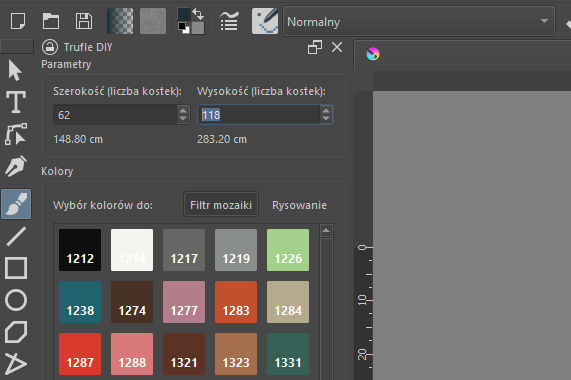
In the Trufle DIY docker, you can set the width and height of the mosaic, measured in tiles. Below these values, the calculated size in centimeters will automatically appear, helping you adapt the design to real-world needs.
Remember to account for 1-2 extra rows of tiles as a margin, which will be needed when installing the mosaic.
If you want to measure a selected portion of your design, choose the rectangular selection tool  and highlight the area you’re interested in. The exact dimensions of the selected area in pixels and centimeters will appear in the status bar in the bottom left corner of the Krita screen. After measuring, make sure to deselect the area so you can continue working on the entire project.
3. Creating a Mosaic from Graphics
You can import graphics into Krita by using the Ctrl + V shortcut (paste) or through Layer> Import/Export > Import Layer….
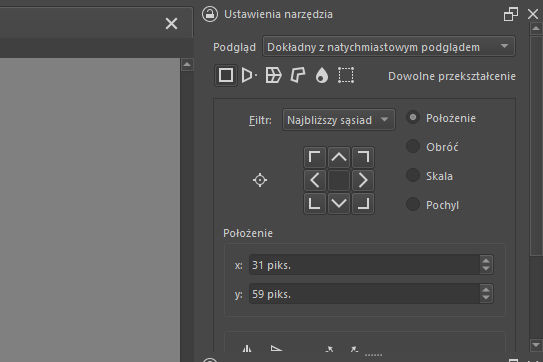
To crop the image, use the Transform a Layer or Selection tool (Ctrl + T)  . In the Tool Options docker, test different options in the “Filter” field. Typically, the Nearest Neighbor option produces the best and sharpest results for mosaic projects. Once you’re happy with the crop and clarity of the image, confirm the operation by pressing Enter.
Remember that scaling graphics is a lossy operation, meaning if you want to change the scale, it’s best to repeat the step from the beginning to maintain the highest possible image quality.
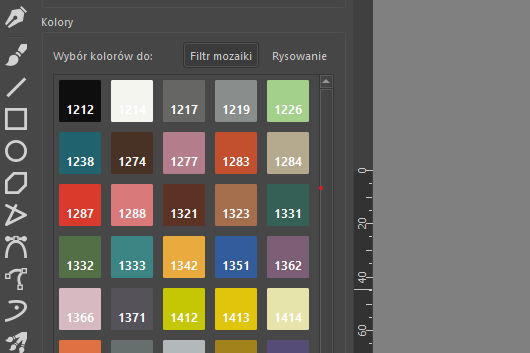
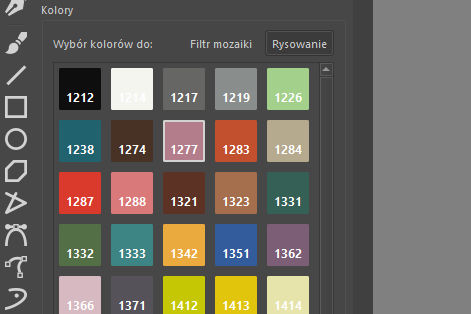
Once you have the right crop, you can transform the image into a mosaic. In the Trufle DIY docker, select the Color Selection for: Mosaic Filter option and choose the colors you want to use for the project. You can select or deselect all colors with dedicated buttons. The color selection can be edited later.
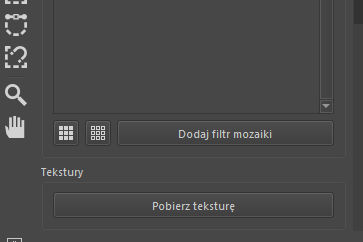
Make sure that in the Layers docker, you have the image selected that you want to turn into a mosaic, and click the Add Mosaic Filter button. A new layer called Mosaic Filter will appear in the layer list. You can have multiple layers in the document, but only one active mosaic filter.
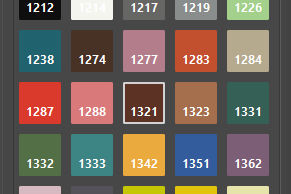
To check what color was used in the mosaic, use the Color Sampler  tool.
tool.
After clicking on a pixel, the selected color will be highlighted in the Trufle DIY docker.
If you want to edit the filter settings, select it in the layer list and press F3. Pay special attention to the Scatter option, which allows more advanced manipulation of the mosaic. We recommend experimenting with the settings, especially the pattern and offset scale.
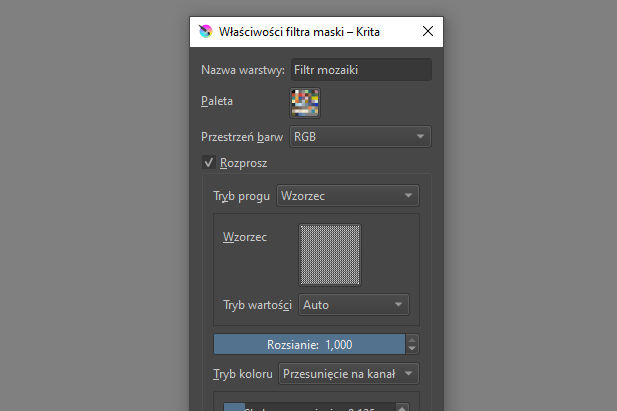
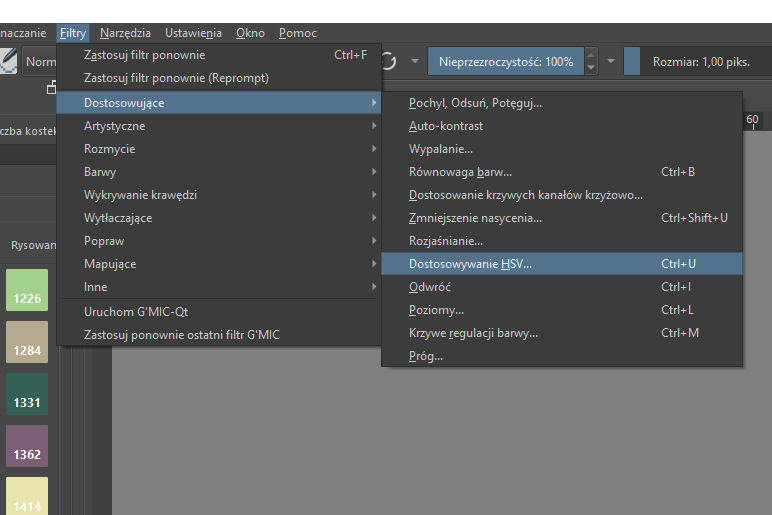
You can further modify the mosaic effect using filters available in Krita. One of our favorites is HSV Adjustment (Filter > Adjust > HSV Adjustment). Make sure you have the image layer selected, not the mosaic filter. This filter lets you adjust hue, saturation, and brightness. The Colorize option allows you to create a monochromatic mosaic.
To save the filter settings for future editing, confirm the changes by creating a Filter Mask (non-destructive editing). Confirming through OK means that the changes are permanently applied to the image (destructive editing).
4. Drawing a Mosaic by Hand
If you want to manually modify the mosaic or draw it from scratch, it’s best to do this on a new layer  . In the Brush Presets docker, choose the Pixel Art brush
  , which is perfect for precise work. To select a color for drawing, choose the Color Selection for: Drawing option and click the color of your choice.
5. Downloading the Texture
When you’ve finished designing, you can download the mosaic texture by pressing the Download Texture button and selecting the location on your drive where you want to save it.
6. Production
If you’re happy with the result and want to get a quote and estimated production time, send us the Krita file via email to diy@trufle.eu. We will contact you within 24 hours with a quote and proposed delivery time.