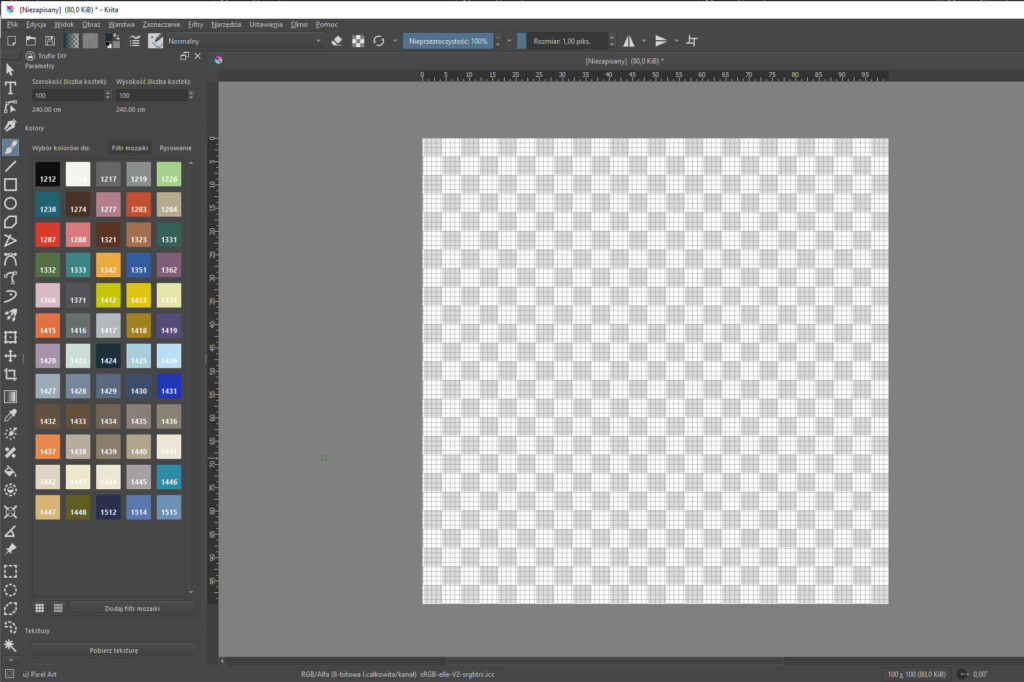


Preparing the UI

Krita offers extensive customization options for its interface, allowing you to create a comfortable workspace tailored to your individual needs. Below are the steps that will help you configure the interface to streamline the mosaic design process.
Steps to Prepare the Interface
1. Displaying Pixels
To work precisely on your mosaic, it’s helpful to configure pixel display on the canvas.
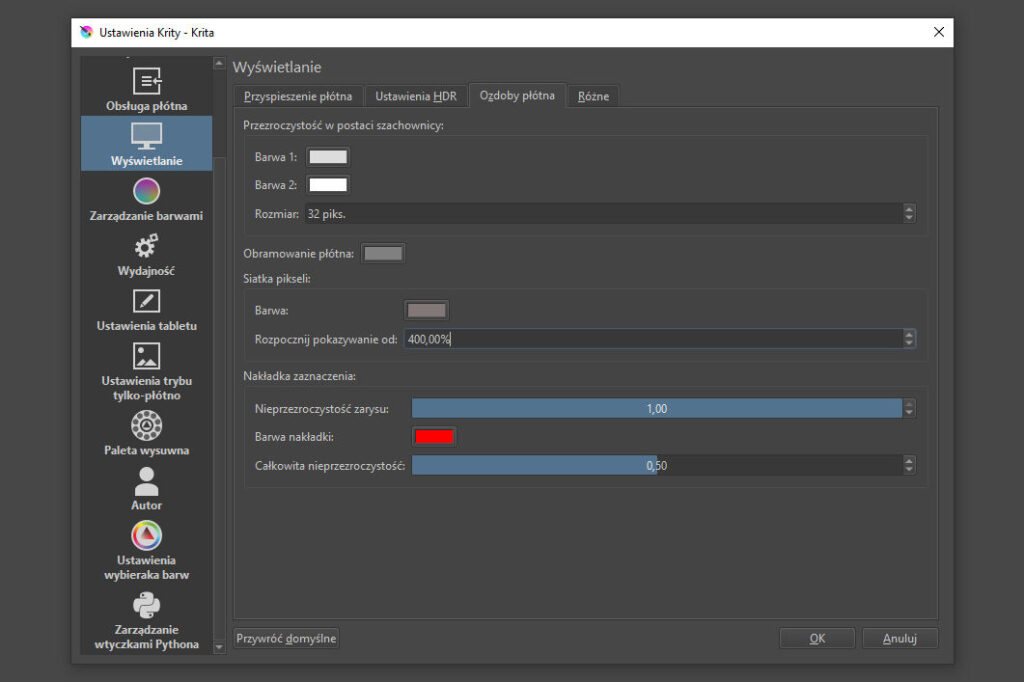
- Go to Settings > Configure Krita > Display.
- In the Canvas Decorations tab you’ll find the Pixel Grid section.
- Change the Grid Color to gray for a more subtle look that won’t interfere with your work.
- In the Start Showing at field, adjust the value e.g. to 400% so the grid will only appear when zoomed in to an appropriate level.
2. Useful Dockers
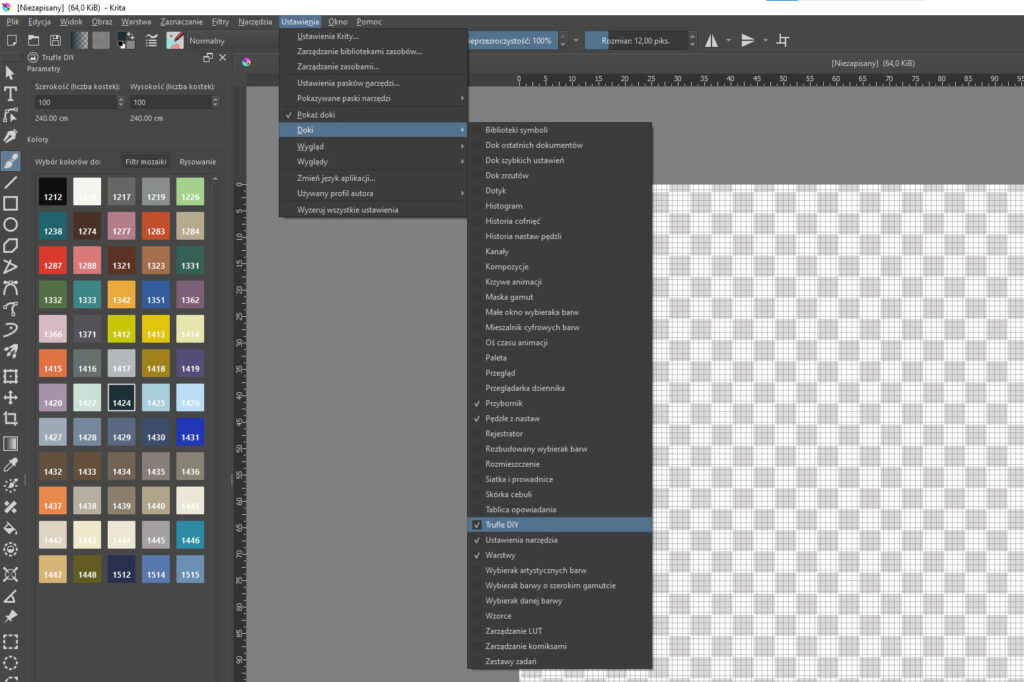
Dockers in Krita are tool panels that can be positioned around the interface. They give you quick access to commonly used tools and features. Each docker can be enabled or disabled as needed.
When designing mosaics in Krita at Trufle, we keep the following dockers active:
- Toolbox
- Brush Presets
- Trufle DIY
- Tool Options
- Layers
These dockers help you quickly select colors, tools, and manage layers, making it easier to handle complex mosaic designs.
3. Brush Selection
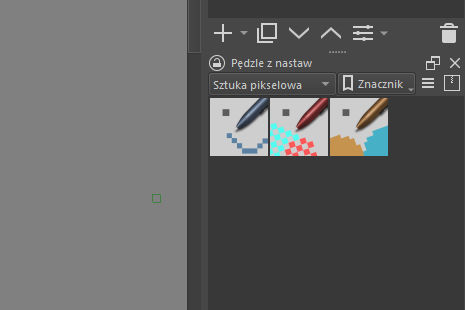
Mosaic work requires high-precision brushes, so we recommend using tools from the pixel art category.
- In the Brush Presets docker, choose the Pixel Art brush set, which is ideal for fine-tuning mosaic details.
4. Positioning the Trufle DIY Docker
The Trufle DIY docker contains tools specifically for working with color and preparing textures. For convenience, we suggest placing it vertically on the right or left side of the interface. This ensures you have constant access to the tools without needing to switch windows frequently.